
Quality inspections
Quality method with inspection level Unit
Section titled “Quality method with inspection level Unit”Choose a quality method with inspection level Unit, and a window looking something like the one below will open:
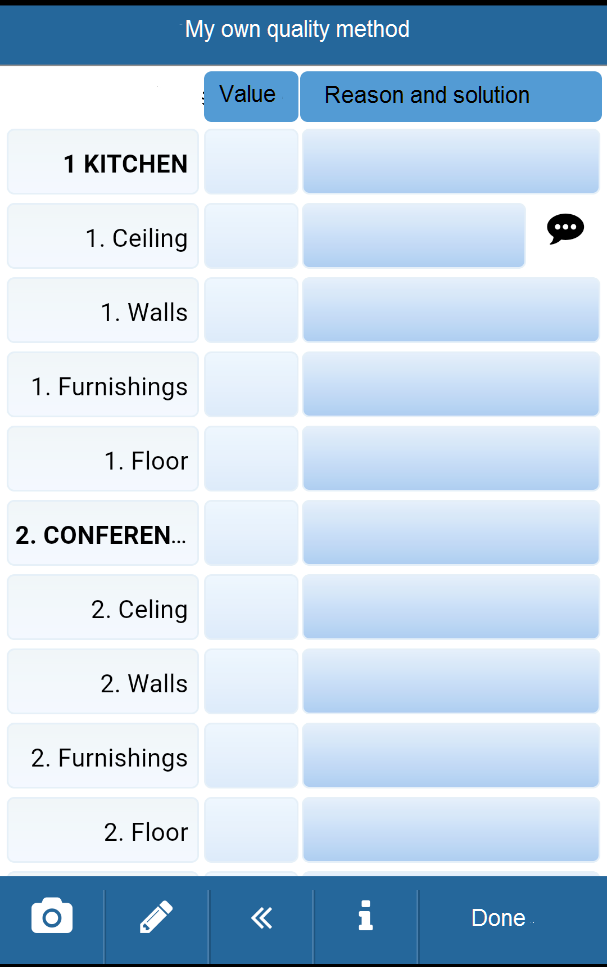
Specify values according to agreed value scale, and add a comment for your inspection, if wanted.
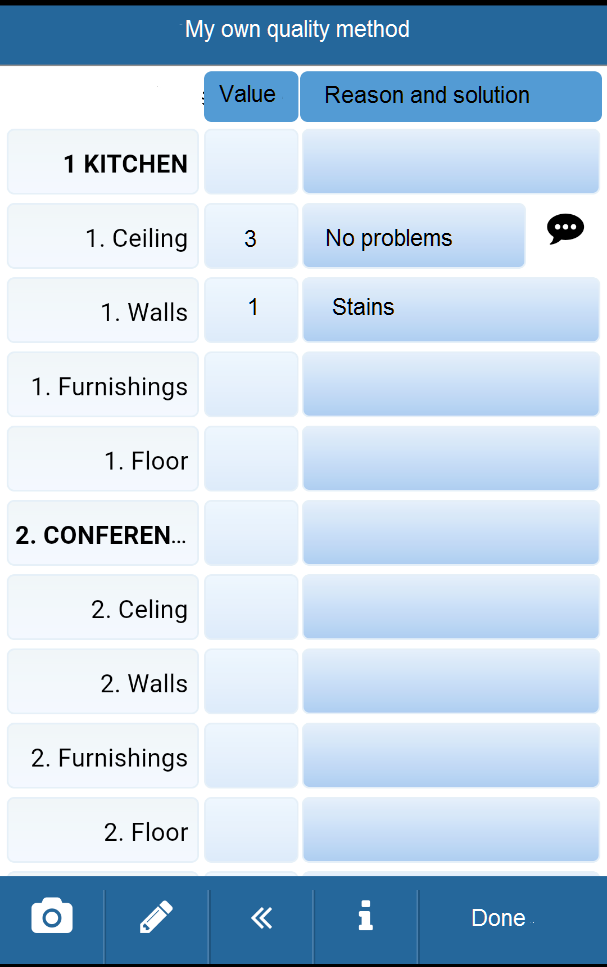
Standard texts
Section titled “Standard texts”The speech bubble with three dots, to the right side of the row, indicates that there are standard texts to choose from. Click on it to be able to choose one.

These are predefined by you in the web version, and can be different from the ones in the example.
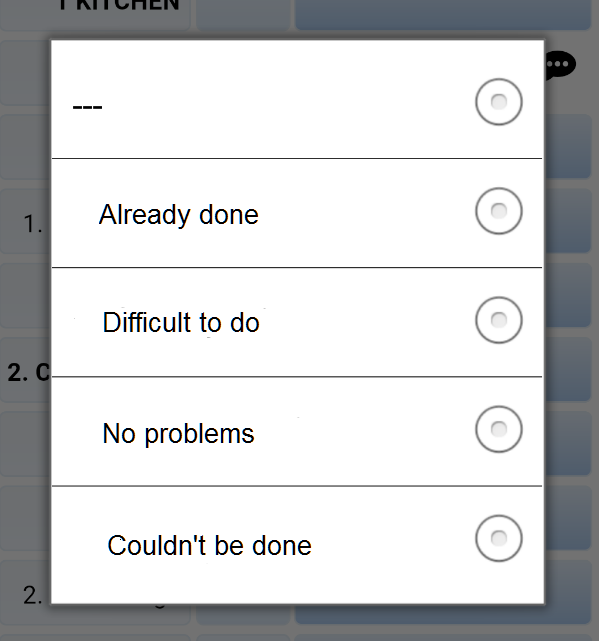
Comment
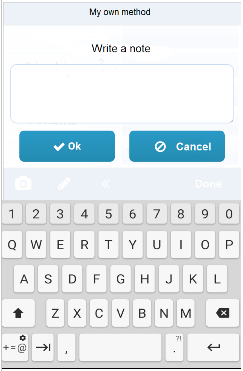
Section titled “Comment”Add a comment for your completed inspection, if wanted. Click on the pen symbol to open the comment input form.

Add your comment and click OK. Click Done on lower panel when you are done.

Upload inspecion
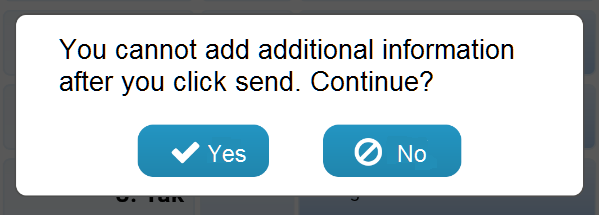
Section titled “Upload inspecion”Upload your quality inspection by clicking Yes.
Quality method with inspection level Room
Section titled “Quality method with inspection level Room”Choose a quality method with inspection level Room, and a window looking something like the one below will open:
Select room type
Section titled “Select room type”Click on the room type you want to inspect.
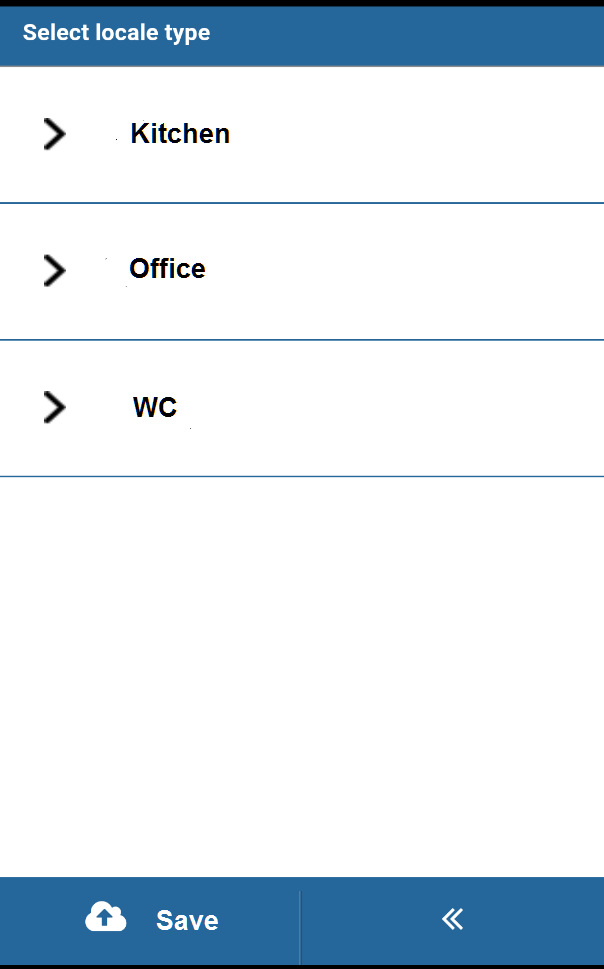
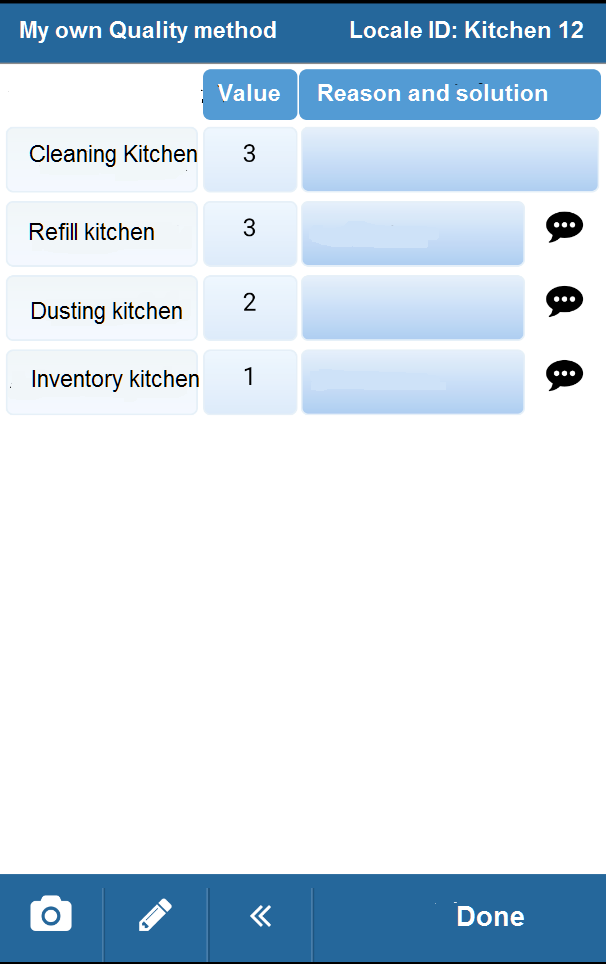
Specify values for the room’s different object groups. The object groups can vary between rooms.
Standard texts
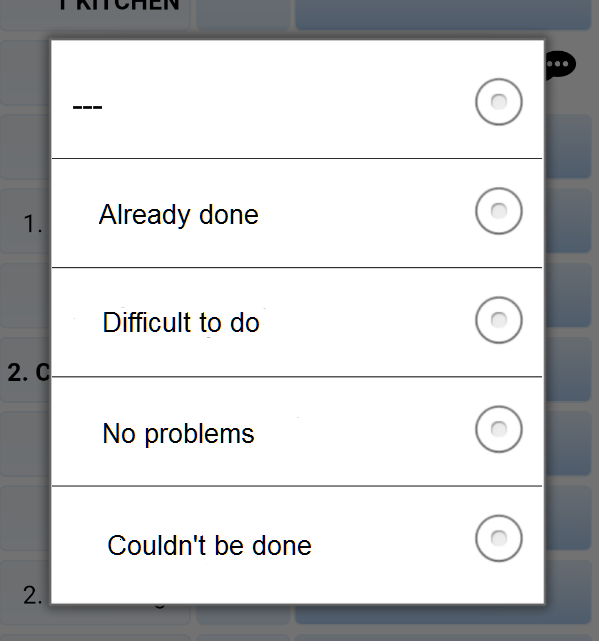
Section titled “Standard texts”The speech bubble with three dots, to the right side of the row, indicates that there are standard texts to choose from. Click on it to be able to choose one.

These are predefined by you in the web version, and can be different from the ones in the example.
Comment
Section titled “Comment”Add a comment for your completed inspection, if wanted. Click on the pen symbol to open the comment input form.

Add your comment and click OK.
Next room
Section titled “Next room”Click Done to proceed to the next room.
This will open the window with room types again.
Choose either
- same room type again, to inspect another room of the same room type
- a different room type, to inspect a room of a differnet room type
Upload inspection
Section titled “Upload inspection”Click Save into finish the inspection.