
Public Holidays
Introduction
Section titled “Introduction”You can add or delete (earlier added) holidays for your company. They are only valid for your company (subscriber account)
Select Settings -> Public holiday in menu
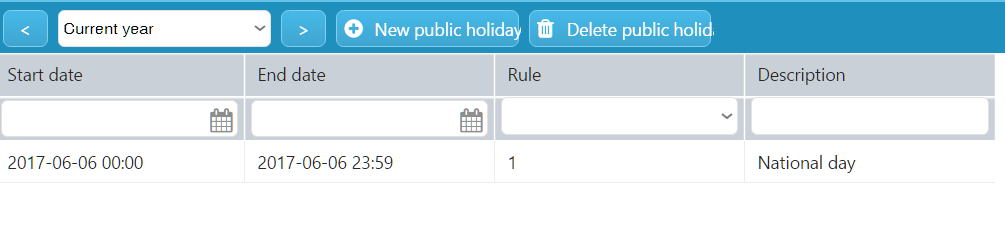
See already added holidays
Section titled “See already added holidays”At start you see a grid with the already added holidays
Add a holiday
Section titled “Add a holiday”Click on button New public holiday
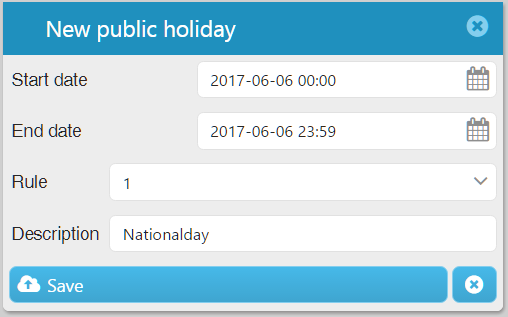
Select Start date and End date. As default time is 00:00 at start date and 23:59 at end date, but you can change that if needed.
Choose Rule 1 or 2. Usually used to show if it is an ordinary holiday or an extra long holiday with several days in a row. This can be used later for different salary calculations, if performer works these days.
Give an apropriate Description.
Delete holiday
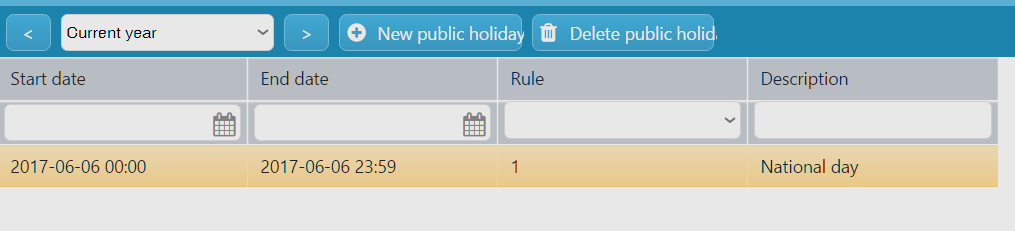
Section titled “Delete holiday”Select one or more holidays to delete and click on button Delete puiblic holiday
You will get a confirmation question.
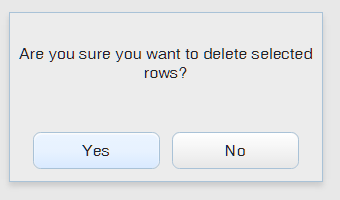
Answer Yes or No.