Attendance
Start feature
Section titled “Start feature”When you as a time terminal user has logged in with username and password you can see this menu.
Click on menu item and you will see the Attendance view
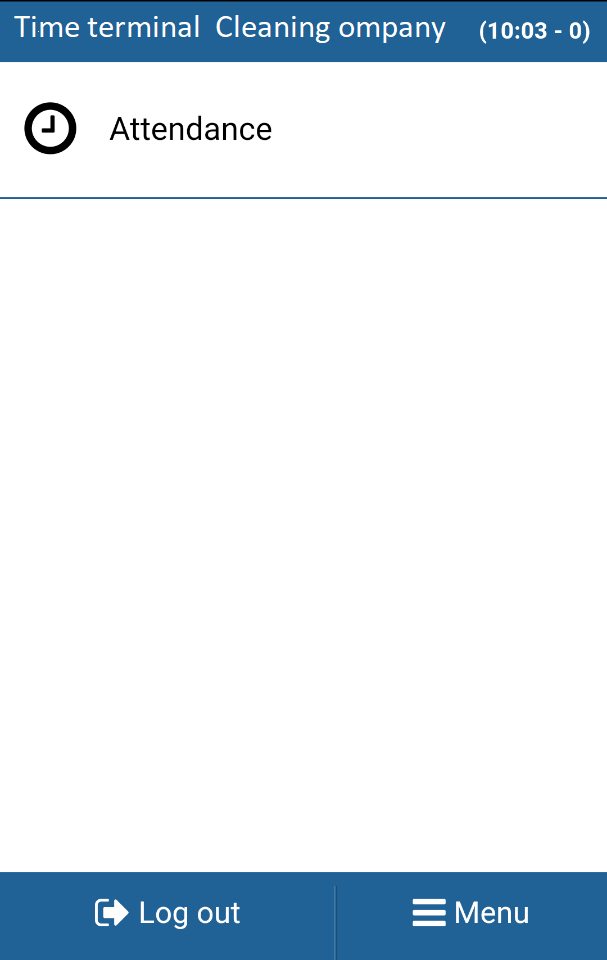
NOTE: If this function is the only one in your menu, or you use a kiosk portal, you should at startup be directed directly to the Attendance view.
Attendance of view
Section titled “Attendance of view”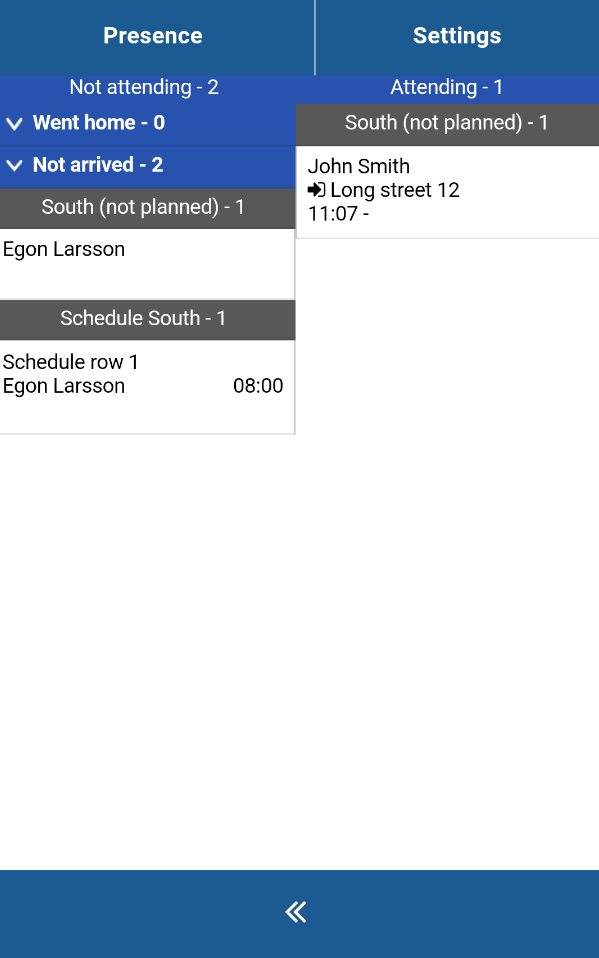
Explanation of content in left column
Section titled “Explanation of content in left column”Service performers who have not yet started a work shift or who have finished a work shift are listed on the left side of the view.
You can expand/compress groups of data, for example
Went home
Not arrived
(different organization units listed)
Exactly what is shown depends on your organization, roles, schedules and settings.
Explanation of content in right column
Section titled “Explanation of content in right column”Service performers with ongoing workshifts are liste in the right coklumn with schedule name, performer name, Avista place if selected in settings and time for start of workshift.
Login with schedule
Section titled “Login with schedule”
Using NFC
Section titled “Using NFC”When the service performer touches the phone / tablet’s back with his personal tag will a time picker be shown*. The employee can choose to accept or change the time shown. No matter what the employee chooses so also recorded the current time in the system.
When the selected time differs from the scheduled time so can a comment be required for registration.
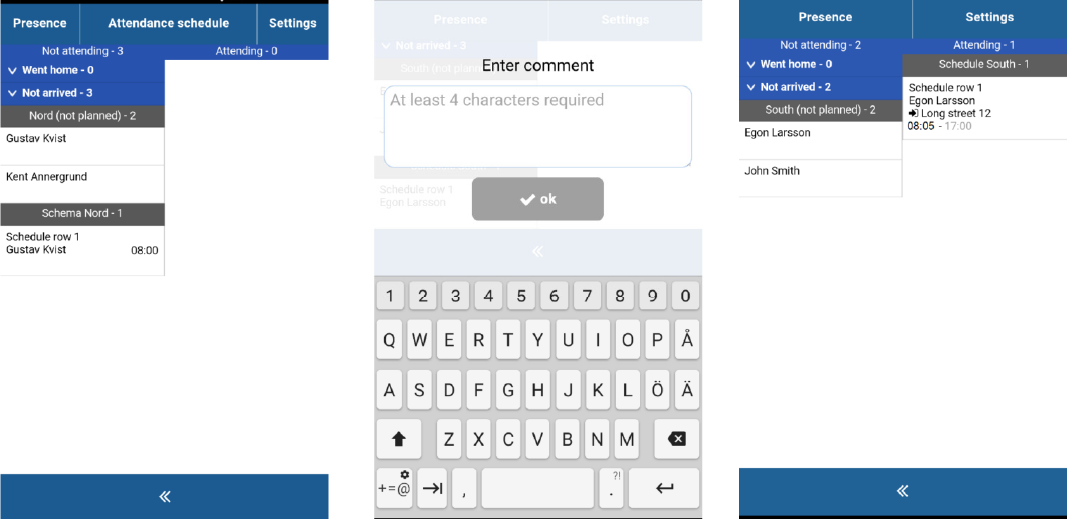
The service performer’s login time is now shown to the right in the view. First is actual time shown and after that the expected logout time in grey. Schedule and Avista place for login site are also shown.
If more than one workshift is planned for the day
Section titled “If more than one workshift is planned for the day”If you start workshift with NFC or QR-code and more than one workshift is planned for the day, you have to choose which to start.
Manual registration
Section titled “Manual registration”Draw with finger name of performer from left to right, and if needed, give a comment.
Logout with schedule
Section titled “Logout with schedule”Using NFC
Section titled “Using NFC”When the employee touches the phone / tablet’s back with his personal tag, a time picker is shown. Employees can choose to accept or change the time shown. No matter what the employee chooses, current time is also recorded in the system.
When the selected time differs from the scheduled time can a comment be required for registration.
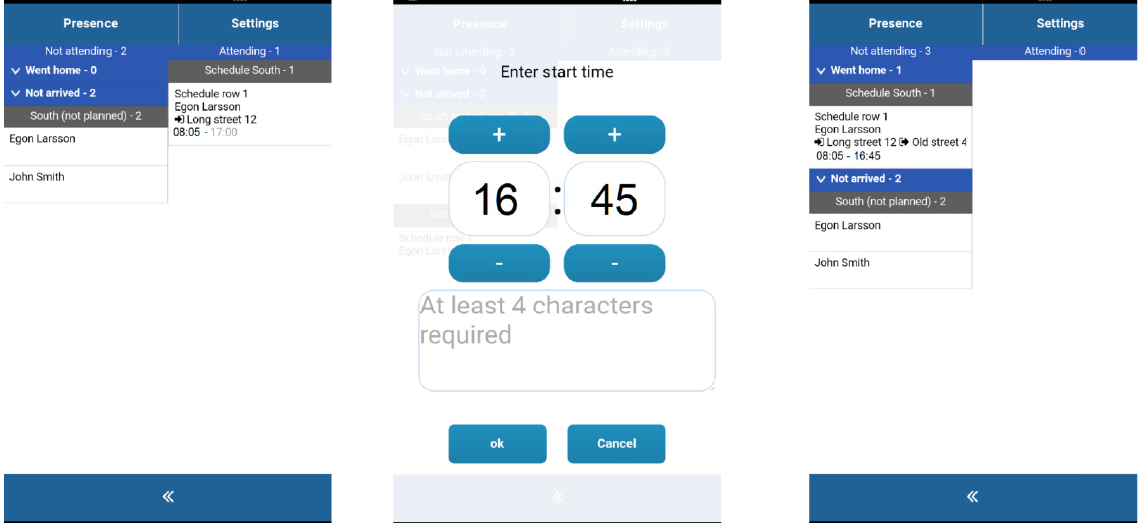
*) IIn Settings can you decide if a time picker should be shown. If time picker is not active all starts and stops are registered accourding to the rules for time tolerances.I
The service performer’s logged in/out time is now shown to the left in the view. First is actual time at login and after that the actual logout time. Schedule and Avista places for both login and logout sites are shown.
Manual registration
Section titled “Manual registration”Draw with finger name of performer from right to left, and if needed, give a comment.
Login without schedule
Section titled “Login without schedule”Using NFC
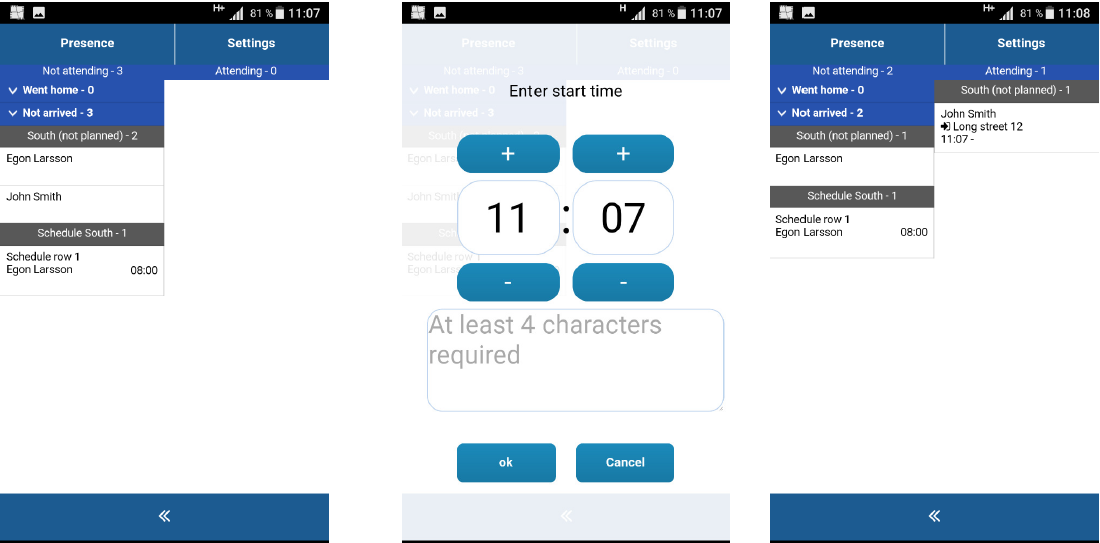
Section titled “Using NFC”If you login without belonging to any schedule, the default is actual time. If time picker is on you can change the selected time and give a comment to why. Regardless what are choosen by the time picker are the actual time also registered in the system.
Manual registration
Section titled “Manual registration”Draw with finger name of performer from left to right, and if needed, give a comment.
Logout without schedule
Section titled “Logout without schedule”Using NFC
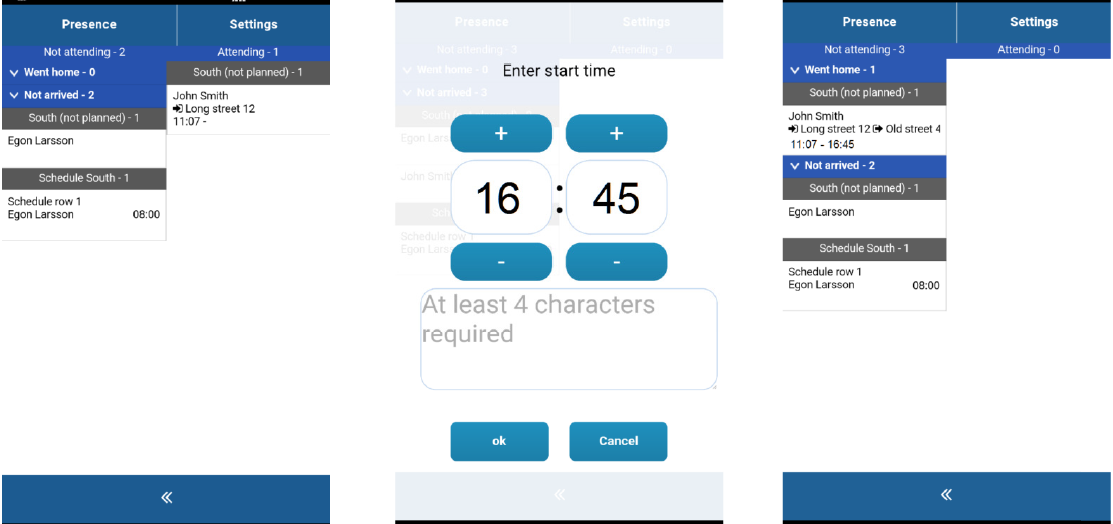
Section titled “Using NFC”If you logout without belonging to any schedule, the default is actual time. If time picker is on you can change the selected time and give a comment to why. Regardless what are choosen by the time picker are the actual time also registered in the system.
Manual registration
Section titled “Manual registration”Draw with finger name of performer from right to left, and if needed, give a comment.
Settings
Section titled “Settings”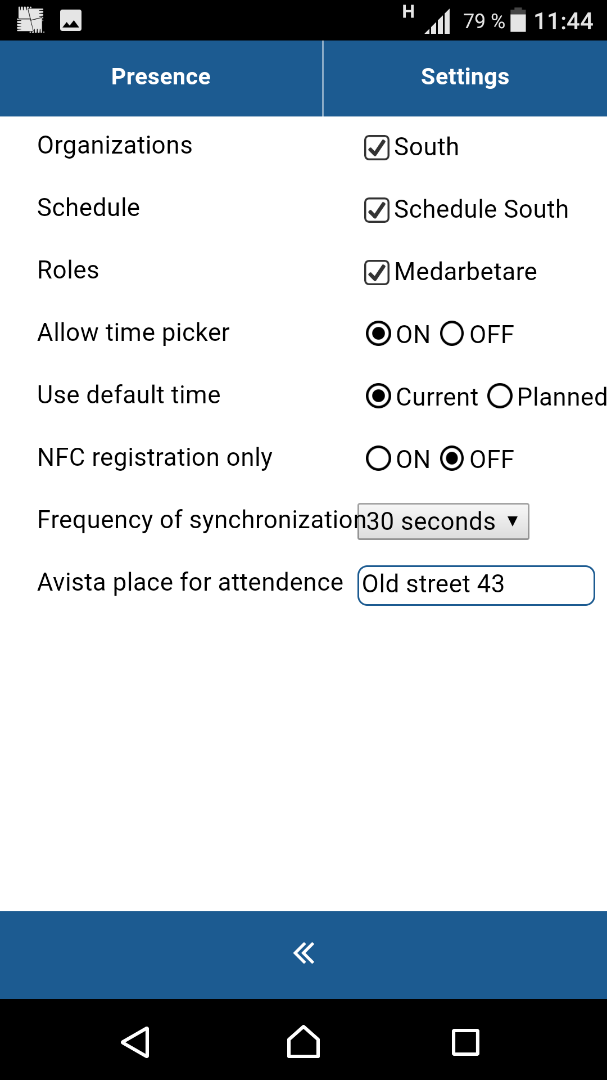
The view can look as above.
Select organization units and optionally schedules
The selection determines who’s asttendance can be seen and reegistered.
Time picker
You can set the time picker on or off. Shown default time in time picker could be actual or planned.
Only NFC
Section titled “Only NFC”You can either demand that only NFC registrations are done, or allow manual registrations.
Sycronization
Section titled “Sycronization”Set the time interval for syncronization.
Avista Place
Section titled “Avista Place”You can assign the device to a specific avuista place if you have more than one device for the team of performers and want to be sure what device they use.
Attendance and time tolerance
Section titled “Attendance and time tolerance”Subscriber parameters
Section titled “Subscriber parameters”Subscriber parameters are set by Avista Time support for the subscriber account.
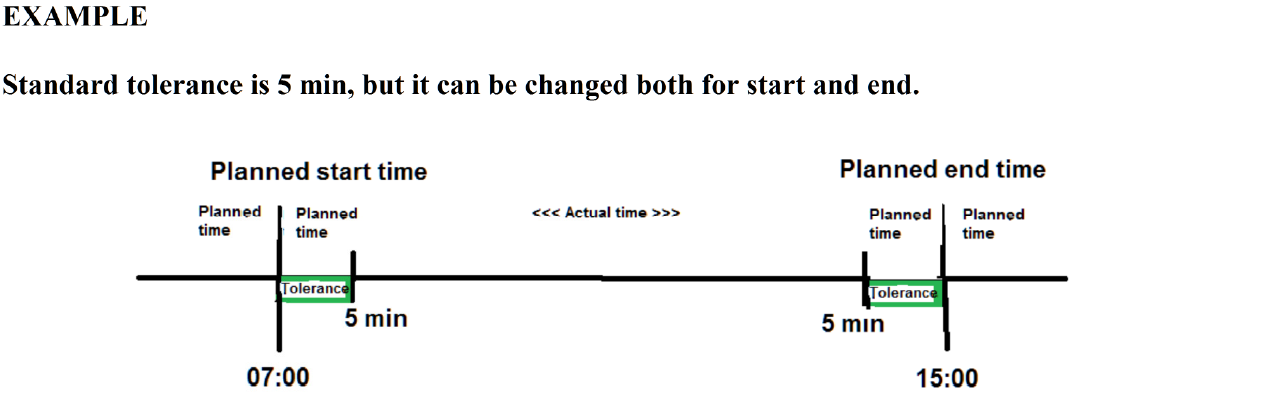
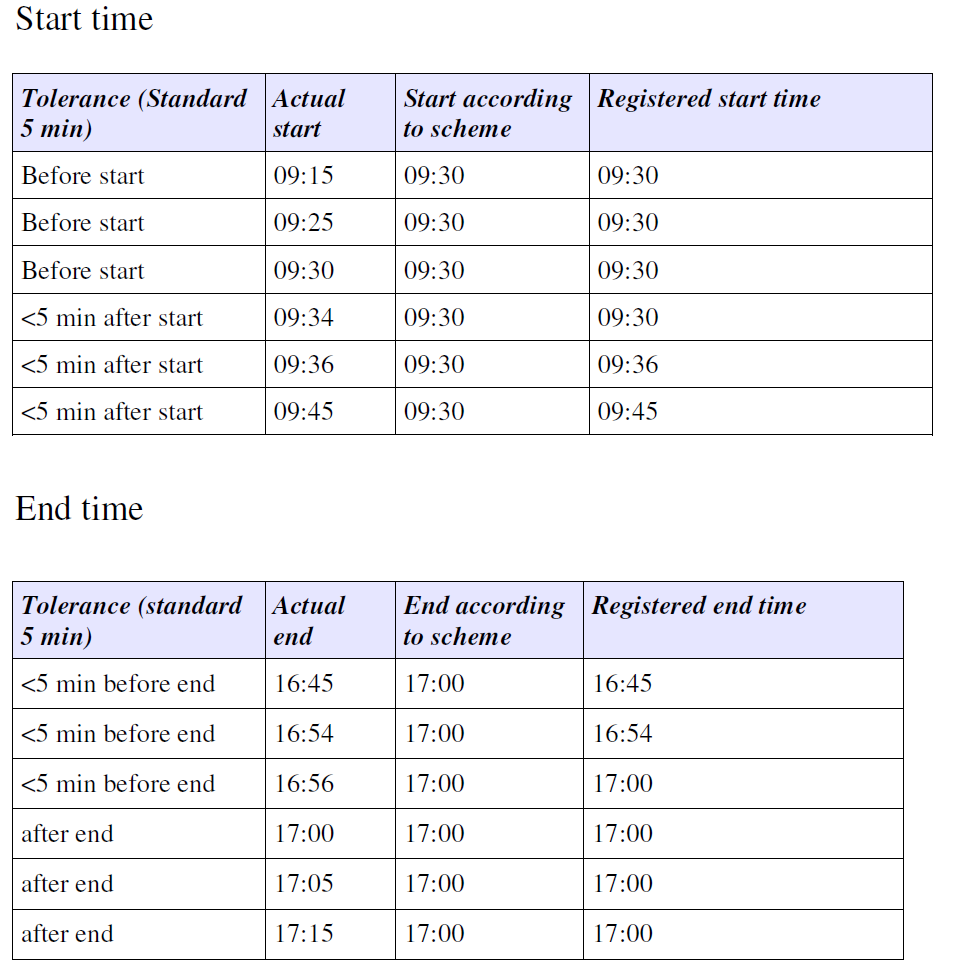
Time tolerance can be set for start time relates to time after planned start time.
Time tolerance can be set for end time relates to time before planned end time.
You can have parameters set to 0 tolerance.
Settings for attendance
Section titled “Settings for attendance”In settings you can select to use actual time or planned time for registrations as default.
(Actual time is shown on device even if planned are selected, after registration)
With the Time picker on can the time be changed by user before registration, a comment is when needed to explain why.
Com,m,ent is needed also if start or end is done outside of planned working hours.